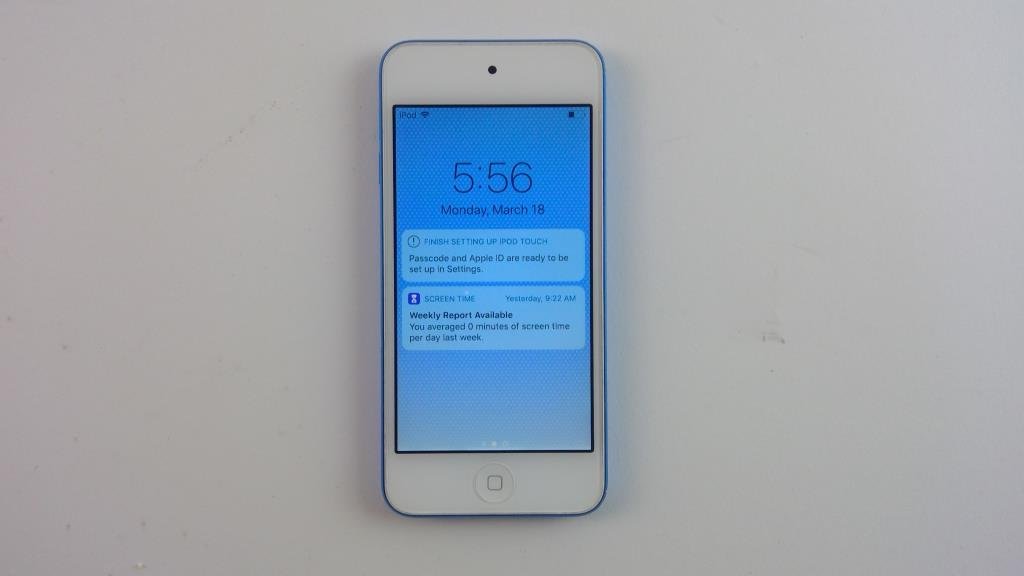
The iPod touch 6th Gen holds a special place for many, a compact marvel that blurred the lines between music player and iPhone. But as technology marches on, owners often find themselves asking tough questions about iPod Touch 6th Gen Software Updates & App Compatibility. Can this trusty device keep pace? What apps still run, and how far can you push its software?
Navigating the landscape of an aging device can feel like a puzzle. You want to keep your beloved iPod touch useful, but the digital world constantly demands newer operating systems. This guide cuts through the confusion, offering a clear path to understanding your 6th Gen's capabilities, its limits, and how to make the most of every last byte.
At a Glance: Your 6th Gen iPod Touch & Its Digital Future
- Software Ceiling: The iPod touch 6th Gen's final official iOS version is iOS 12.5.7. It cannot run iOS 13 or later.
- App Compatibility: Many modern apps require iOS 13 or newer, meaning they won't install or run on your 6th Gen. Older versions of some apps might still work.
- Updating is Safe: Updating to the latest compatible iOS version preserves your data, though a backup is always wise.
- Manual & Automatic: You can update directly on the device or via a computer (Finder/iTunes).
- Optimization is Key: Cleaning out unused apps, managing settings, and maintaining physical care can extend its useful life significantly.
- Alternative Paths (Use Caution): Jailbreaking or custom firmware exist but carry risks and void warranties.
The Heart of the Matter: iOS Updates for Your 6th Gen iPod Touch
When we talk about the iPod touch 6th Gen, its journey with official software updates effectively concluded years ago. This isn't a flaw in the device; it's the natural lifecycle of consumer electronics. Understanding this fundamental truth is the first step in managing your expectations and maximizing its potential today.
Your Update Ceiling: Why iOS 12 is the End of the Road
The iPod touch 6th Gen, released in 2015, came equipped with an A8 chip. While powerful for its time, this hardware eventually hit its limit for supporting the increasingly demanding features and architectures of newer iOS versions. Apple's decision to stop supporting devices with iOS 13 and later often comes down to performance. Pushing an older chip to run complex new software can lead to sluggishness, crashes, and a poor user experience.
For your 6th Gen iPod touch, iOS 12.5.7 is the highest official operating system you can install. This means any app that explicitly requires iOS 13, iOS 14, iOS 15, or newer simply won't run, regardless of how much storage you have or how well you maintain the device. It's a hardware-based limitation, not a software bug you can fix.
Why Updating (to the Compatible Version) Still Matters
Even if you can't get the latest iOS, staying current with the latest compatible version (iOS 12.5.7 for the 6th Gen) is still crucial. These minor point updates often include critical security patches, bug fixes, and sometimes even small performance improvements that can keep your device running smoothly and securely against evolving threats. Think of it like maintaining an older car; you might not be able to upgrade to a brand new engine, but regular oil changes and tune-ups keep it reliable for longer.
An updated OS can also slightly improve compatibility with older versions of apps that might still be available in the App Store, bridging gaps where possible. It's about ensuring the best possible foundation for whatever tasks your iPod touch can still handle. For a deeper dive into everything this specific model offers, check out our comprehensive iPod touch 6th gen guide.
How to Get the Latest Compatible iOS Version
Updating your iPod touch 6th Gen to its highest compatible iOS version (12.5.7) is a straightforward process. Before you begin, always back up your device. This safeguards your precious photos, music, and data in the rare event something goes awry. You can back up to iCloud (Settings > Your Name > iCloud > iCloud Backup) or to a computer (Finder on Mac, iTunes on Windows).
Updating Directly on Your Device (Over-the-Air)
This is usually the easiest method, requiring only a Wi-Fi connection and sufficient battery life.
- Check for Updates: Go to
Settings > General > Software Update. Your iPod touch will automatically check for any available updates. - Download and Install: If iOS 12.5.7 (or an earlier version of iOS 12 you haven't installed yet) is available, you'll see an option to "Download and Install." Tap this, enter your passcode if prompted, and agree to the terms and conditions.
- Automatic Updates (Optional): To ensure you don't miss future minor patches (unlikely for such an old OS, but good practice), you can enable automatic updates. Go to
Settings > General > Software Update > Automatic Updates. Turn on both "Download iOS Updates" and "Install iOS Updates." Your iPod touch will then download and install updates overnight while charging and connected to Wi-Fi.
Updating with a Computer
If you have limited storage on your iPod touch, or prefer a more controlled update process, using a computer is a reliable alternative.
- Connect Your Device: Use a USB cable to connect your iPod touch 6th Gen to your computer.
- For macOS 10.15 (Catalina) or later:
- Open Finder.
- In the sidebar, select your iPod touch.
- Click on the "General" tab.
- Click "Check for Update," then "Update."
- For earlier macOS versions or Windows PC:
- Open iTunes.
- Click the iPod touch icon near the top left (it looks like a small device).
- Click "Summary" in the sidebar.
- Click "Check for Update," then "Update."
The computer will download the necessary software and guide you through the installation process. Just ensure you have a stable internet connection.
The App Compatibility Conundrum: What You Can (and Can't) Run
Here's where the rubber meets the road for older devices like the iPod touch 6th Gen. While the device itself might still function perfectly, the app ecosystem has moved on, creating significant challenges for usability in today's digital world.
The Unavoidable Truth: App Store Limitations
The biggest hurdle for any older iOS device is the App Store. App developers constantly update their applications to take advantage of new iOS features, performance improvements, and security enhancements. This often means raising the minimum iOS version requirement.
For your 6th Gen iPod touch, which maxes out at iOS 12.5.7, this translates into:
- Many new apps won't install: When you try to download a popular app, you'll frequently encounter a message like, "This app requires iOS 13.0 or later," or "This app is not compatible with your device." There's no workaround for this.
- Existing apps may stop working: Apps you already have installed might eventually stop receiving updates. Over time, some may even cease to function entirely as their backend services are updated to only support newer app versions, which your iPod touch can't run.
- Reduced functionality in older versions: If you can download an older, compatible version of an app, it might lack features, have a less refined interface, or even connect to older, slower servers compared to its modern counterparts.
This isn't to say your iPod touch is useless for apps; rather, its utility is now limited to a specific subset of the App Store.
Finding Apps That Still Work: A Practical Approach
Don't despair! Your 6th Gen can still be a fantastic device for many purposes. The key is to adjust your strategy for finding apps:
- "Download Last Compatible Version": This is your best friend. When you try to download an app that has a newer version requiring iOS 13+, the App Store often offers to download the last compatible version for your device. Always say "yes" to this prompt.
- Tip: This feature works best if you previously "purchased" (even free apps count) the app on another, newer device linked to the same Apple ID.
- Explore Alternatives: For common tasks, many apps have lighter-weight or web-based versions.
- Browser-based access: For social media, news, email, and some streaming services, using Safari to access the website directly can often provide a similar (though not identical) experience to a dedicated app.
- Lite versions: Some developers offer "Lite" or "Go" versions of their apps designed for older hardware or slower connections. Search the App Store for these specifically.
- Focus on Core Functionality: The iPod touch still excels at music playback, podcasts, simple games, notes, calendars, and browsing. Many apps in these categories (especially those not requiring constant online updates) might still function well.
- Retro Gaming: Emulators (if you're comfortable with jailbreaking) and older games that haven't been aggressively updated are often a delight on the 6th Gen.
Why Newer Apps Say "No": Developer Support and iOS Requirements
At its heart, app compatibility boils down to developer choices and underlying technological shifts.
- API Changes: Each new iOS version introduces new Application Programming Interfaces (APIs). Developers use these to build features, access hardware, and optimize performance. When an app adopts new APIs not present in iOS 12, it must set its minimum iOS requirement higher.
- Hardware Evolution: Newer apps often expect specific hardware capabilities (like more RAM, faster processors, or specialized co-processors) that older devices simply lack.
- Security & Maintenance: Maintaining compatibility with very old iOS versions adds significant development and testing overhead. For many developers, especially smaller ones, it's simply not cost-effective to support a shrinking user base on outdated operating systems.
- User Experience: Developers want their apps to perform well. Forcing a modern, graphically intensive app onto an old device could lead to a frustrating experience for the user and reflect poorly on the app.
These are the realities that shape the app landscape for your iPod touch 6th Gen. It's a testament to the pace of technological change rather than a fault with your device.
Maximizing Your 6th Gen's Lifespan and Performance
Even with software limitations, a well-maintained iPod touch 6th Gen can be a surprisingly useful companion. Performance optimization and physical care are paramount to extending its utility.
Keeping It Snappy: Optimization Tips
An older device can feel sluggish not just because of its age, but because of accumulated digital clutter and demanding background processes. Here's how to breathe new life into it:
Clearing the Clutter: Offloading and Deleting
- Delete Unused Apps: Go through your app library. If you haven't used an app in months, delete it. Long-press the app icon until it jiggles, then tap the "X" (or use
Settings > General > iPod touch Storageto see what's taking up space). This frees up precious storage and reduces background activity. - Manage Media: Photos and videos are often the biggest storage hogs.
- Transfer to Computer: Regularly move your photos and videos to a computer.
- Cloud Storage: Utilize iCloud Photos (if you have enough storage) or services like Google Photos to offload media from your device. Just remember that syncing might require a working internet connection.
- Clear Browser Cache: Safari can accumulate a lot of data. Go to
Settings > Safari > Clear History and Website Data. This can speed up browsing and free up space.
Fine-Tuning Settings: Less Is More
- Disable Background App Refresh: This feature allows apps to update their content in the background, consuming battery and CPU cycles. Go to
Settings > General > Background App Refreshand either turn it off entirely or selectively disable it for apps you don't need to be constantly updated. - Reduce Transparency and Motion Effects: iOS 12 still has some visual flair that can strain older hardware.
- Reduce Transparency: Go to
Settings > General > Accessibility > Increase Contrastand enable "Reduce Transparency." - Reduce Motion: Go to
Settings > General > Accessibility > Reduce Motionand enable it. This will make UI animations simpler and faster.
- Location Services: Many apps request location data. Review
Settings > Privacy > Location Servicesand set apps to "While Using" or "Never" if they don't critically need your location. - Push Notifications: Limit notifications for non-essential apps in
Settings > Notifications. Fewer notifications mean less background activity and less screen wake-up.
The Factory Reset Option: A Fresh Start
As a last resort, if your iPod touch is still inexplicably slow or buggy after trying everything else, a factory reset can offer a clean slate. This erases all data and settings, returning the device to its out-of-the-box state.
- WARNING: This deletes everything. Ensure you have a complete backup (to iCloud or computer) before proceeding.
- To perform a reset: Go to
Settings > General > Reset > Erase All Content and Settings.
Physical Care for Longevity
Software updates and app compatibility are only part of the story. The physical well-being of your iPod touch also plays a huge role in its overall lifespan.
- Keep it Clean: Dust and grime can accumulate in ports (charging, headphone) and buttons. Use a soft, dry, lint-free cloth to wipe the screen and body. A toothpick (carefully!) can dislodge debris from ports.
- Avoid Extreme Temperatures: Exposure to very hot or very cold environments can damage the battery and internal components. Don't leave it in a hot car or use it for extended periods in freezing weather.
- Invest in Protection: A durable case and a screen protector can prevent costly damage from drops and scratches, keeping the hardware intact for longer.
By combining smart software management with diligent physical care, your iPod touch 6th Gen can continue to be a valuable device for years to come, even if its role has evolved.
Beyond Official Updates: Exploring Alternatives (With Caution)
When official iOS updates for your 6th Gen iPod touch are no longer available, the door opens to unofficial methods. These can potentially extend functionality or breathe new life into your device, but they come with significant risks and caveats. Proceed with extreme caution and a full understanding of the implications.
Jailbreaking: Unlocking Potential, Accepting Risks
Jailbreaking modifies the core operating system (OS) of your iPod touch, removing restrictions imposed by Apple. This allows you to:
- Install unofficial apps (tweaks): Access to Cydia, an alternative app store, offering system modifications, themes, and apps not sanctioned by Apple.
- Customize the UI: Change aspects of the interface far beyond what Apple allows.
- Install alternative firmware: Though less common for very old devices, some older jailbreaks could facilitate this.
However, the risks are substantial: - Voided Warranty: Apple considers jailbreaking a violation of its terms and conditions, voiding any remaining warranty and potentially refusing service.
- Security Vulnerabilities: Jailbreaking opens up your device to potential malware and security breaches, as it bypasses Apple's stringent security measures. You're essentially removing a layer of protection.
- Instability and Performance Issues: A poorly executed jailbreak or incompatible tweaks can lead to system instability, crashes, reduced battery life, and general sluggishness.
- Update Headaches: Future (even minor) official iOS updates can break your jailbreak, requiring you to restore your device and potentially lose data.
- Difficulty: The process can be complex, and finding a stable, reliable jailbreak for an older iOS version (like iOS 12 for the 6th Gen) can be challenging and often requires specific tools or knowledge.
For most users, especially those who rely on their device for security-sensitive tasks, jailbreaking is generally not recommended.
Custom Firmware: A Niche, Advanced Path
Custom firmware (sometimes referred to as custom ROMs in the Android world) are modified versions of iOS specifically designed for older devices. They might aim to:
- Improve performance: Strip out unnecessary features to make the OS lighter.
- Add features: Introduce functionalities no longer supported by official iOS releases, or bring back older features.
- Extend app compatibility: In rare cases, trick apps into thinking a newer OS is present (though this is often limited).
The challenges are even greater than jailbreaking: - Extremely Technical: Installing custom firmware is a highly technical process, often requiring a deeper understanding of device architecture and command-line tools. It's not for the faint of heart.
- Brick Risk: A mistake during installation can "brick" your device, rendering it permanently unusable.
- Scarcity and Trust: Finding reliable, well-supported custom firmware for a specific model like the iPod touch 6th Gen on iOS 12 is very rare. Trusting the source is paramount, as malicious firmware could compromise your data.
- Limited Benefits: The actual benefits might be minimal, and the effort/risk ratio is usually not worth it for the average user.
This path is almost exclusively for hobbyists and experienced modders who understand the inherent dangers and are prepared to potentially lose their device.
Third-Party Tools: A Helping Hand, But Do Your Homework
You might encounter third-party software tools like iMyFone Fixppo, Dr.Fone – System Repair, or Tenorshare ReiBoot that claim to help "update" or "repair" old iOS devices. These tools typically offer features like:
- System Repair: Fixing common iOS issues without data loss.
- Downgrading iOS: Sometimes allowing you to revert to an older, signed iOS version (though signing windows are usually short).
- One-Click Jailbreak/Root: Offering simpler methods for these advanced procedures (though these are often outdated or less reliable).
Before using any such tool: - Research Thoroughly: Look for independent reviews, user testimonials, and any red flags. A quick search should reveal if a tool is reputable or potentially harmful.
- Understand What It Does: Don't just click "Start." Read the documentation to understand the exact process and what changes the tool will make to your device.
- Backup First: Always, always back up your device before using any third-party system-level tool.
- Cost vs. Benefit: Many of these tools are paid. Weigh the cost against the potential benefits for an aging device.
While some of these tools can be genuinely useful for specific repair tasks, approaching them with a critical eye is essential. For updating, stick to Apple's official methods for the compatible iOS version.
Frequently Asked Questions About Your iPod Touch 6th Gen
Even with the best intentions, questions can linger. Here are crisp answers to some common queries about the iPod touch 6th Gen's software and app landscape.
Can I download brand new apps on my 6th Gen iPod Touch?
Mostly no. Many new apps released today require iOS 13 or later to function. Since your 6th Gen iPod touch maxes out at iOS 12.5.7, it cannot run these applications. You might be able to download older, compatible versions of some apps if they are still offered by the developer, especially if you previously downloaded them on another device with the same Apple ID.
Will updating my iPod Touch delete my data?
No, performing an official iOS update to the latest compatible version (iOS 12.5.7) will preserve your data and settings. However, it's always strongly recommended to back up your device to iCloud or a computer beforehand, just in case an unforeseen issue arises during the update process.
What's the absolute latest iOS version for the iPod Touch 6th Gen?
The iPod touch 6th Gen can officially run up to iOS 12.5.7. It cannot be updated to iOS 13, iOS 14, iOS 15, or any newer iOS versions due to hardware limitations.
Is it worth updating an old iPod Touch?
Yes, updating your iPod touch 6th Gen to its highest compatible iOS version (12.5.7) is generally recommended. These updates often include important security patches, bug fixes, and minor performance improvements that can help keep your device running as smoothly and securely as possible. While it won't open the door to new apps, it optimizes its current capabilities.
Can I still access the App Store?
Yes, you can still access the App Store on your iPod touch 6th Gen running iOS 12.5.7. However, your selection of downloadable apps will be significantly limited. You'll primarily find apps whose minimum iOS requirement is iOS 12 or earlier. For many popular apps, you'll be prompted to download the "last compatible version" if available.
Your 6th Gen's Journey Continues: Making the Most of What You Have
Your iPod touch 6th Gen might no longer be cutting-edge, but it's far from obsolete. Its limitations in software updates and app compatibility are simply a reflection of technology's relentless march forward, not a judgment on the device itself. By understanding these boundaries, you empower yourself to use it smartly and effectively.
Think of your 6th Gen as a specialized tool in your digital arsenal. It's an excellent, dedicated music player, a portable gaming console for classic titles, a reliable note-taker, a basic web browser, and a nostalgia trip all rolled into one. By focusing on its strengths—its compact size, robust build quality (if cared for), and the apps that do still work—you unlock its enduring value.
Keep it updated to its highest compatible iOS (12.5.7), optimize its performance with the tips we've shared, and treat it with physical care. Whether it's your primary device for specific tasks or a reliable backup, your iPod touch 6th Gen still has plenty of life left to give. Embrace its current capabilities, and it will continue to serve you well.